Turn a product URL or demo recording into a polished promo
Hook, feature beats, and a call to action — built by re-theming a proven promo template with your own footage, designed graphic cards, and narration. Then let AI find the best spots to place your product.
Key takeaways
- A promo is a re-theme: keep the template's structure and pacing, replace the words, footage, and audio.
- On-screen text and end cards are always designed graphics (hyperframes / render-html), never AI video.
- Product placement watches your footage and finds native spots to insert the product — it needs a Gemini key.
- Keep the product on-brand by passing the real product photo as a reference on every generation.
A promo is a re-theme, not a rebuild
You don't build a promo from a blank timeline — you fork one that already converts and re-theme it. The copilot thinks in three axes: scenes (footage), audio (voiceover and music), and text (hooks, captions, CTA). Keep the viral structure and pacing; replace the content on all three axes for your product.
The cheap, high-quality path leans on your own footage — screen recordings and product shots — plus designed graphic cards, with AI generation reserved for the shots you can't capture. Everything happens by chatting in the Trackpad Editor .
Manual walkthroughDo it yourself (the web UI)
-
Fork a promo template and re-theme it
Fork a product-promo format on Discover , then chat: "Re-theme this for my product. Keep the structure and pacing. Rewrite the hook and CTA copy, swap the demo scenes for my screen recordings in My Files, and keep the caption style." The copilot runs
set_layer_text/set_captionsfor words andset_layer_mediafor your footage, preserving the transitions. -
Add designed title and CTA cards
Chat: "Make a title card and a CTA end card as designed graphics." The copilot renders them with
POST /images/render-htmland drops each as an image layer. On-screen text is always a designed graphic — never AI video — so it stays crisp and legible. -
Layer Voiceover and a light music bed
Chat: "Add a confident Voiceover reading the hook and CTA, plus a light upbeat music bed." Narration comes from
/audio/speechon one track (~1.0 volume); the music bed is a real, owned file on another (~0.1–0.2). There's no music-generation primitive, so the bed is uploaded, never faked from the voice. -
Find native placement spots for your product
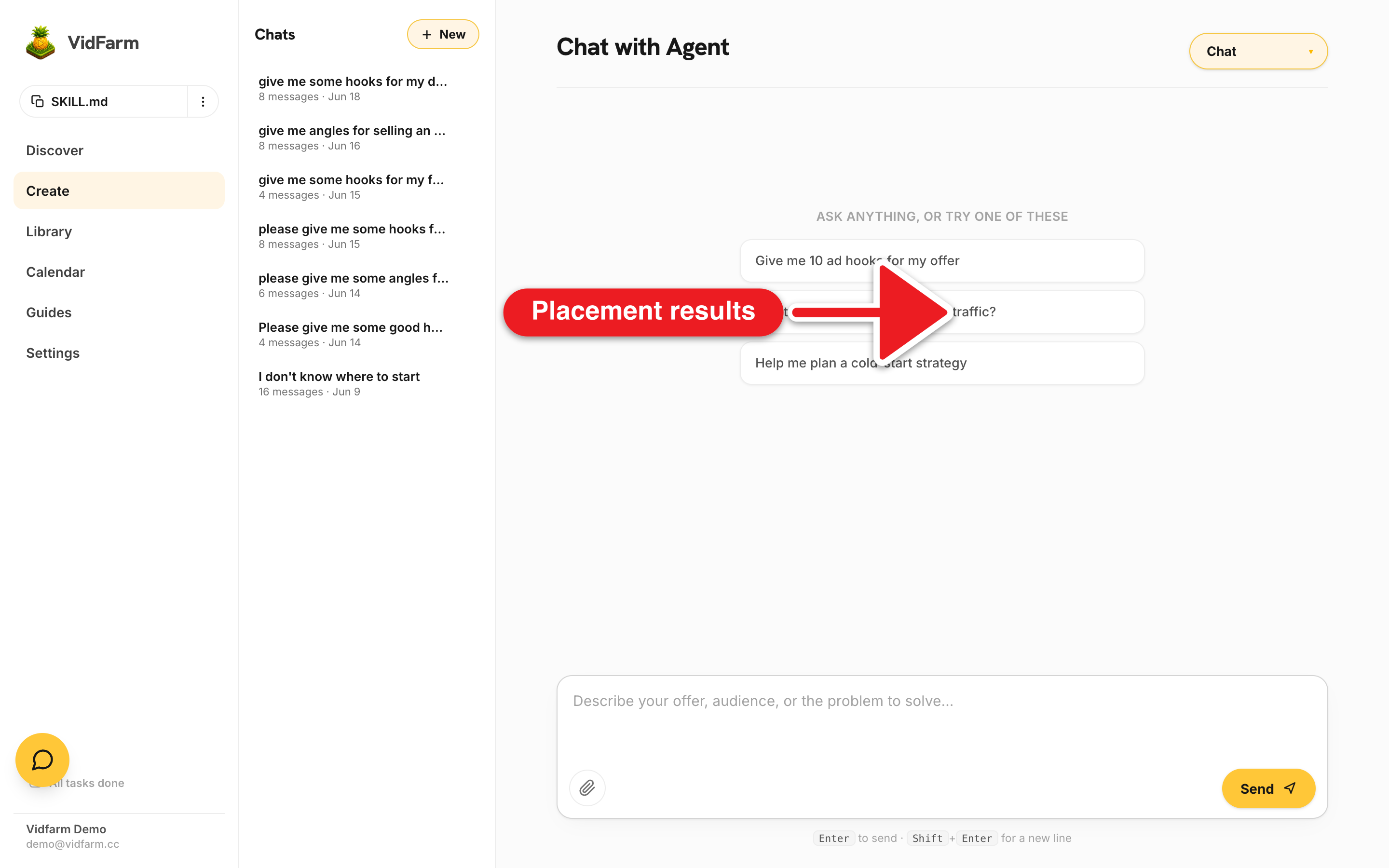
Chat: "Watch this UGC clip and find 5 spots to natively place my meal-planning app." The copilot calls
POST /api/v1/primitives/brainstorm/product_placementwith your offer, and gets back timestampedopportunities[]— each with the moment, placement type, the idea, and why it works. Then insert a floating product card at the best moment. -
Render, approve, and schedule
Review, then say "render it." The promo lands on its approved page with copyable caption and Download, and shows in your approved library . Hit Schedule to push it to a connected channel via Settings → Channels — the Socials page then visualizes it.
Where to go next
A promo mixes real footage with a little generation. For a fully graphic-driven piece where motion itself is the message, try the Vox-style motion explainer — or bring in a recurring spokesperson with the character guide.
Build your promo now
Fork a proven promo, re-theme it for your product, add designed cards and a voiceover, then approve and schedule it. Open the editor to start.
Open the editor