Keep the same face and outfit in every generated shot
Consistency isn't luck — it's mechanical. Lock your character once into a sprite card, save it as a durable trio in My Files, then feed that same reference into every image and video you generate.
Key takeaways
- A character lives at /files/characters/<slug>/ as a trio: a JSON manifest, a sprite card PNG, and an about doc.
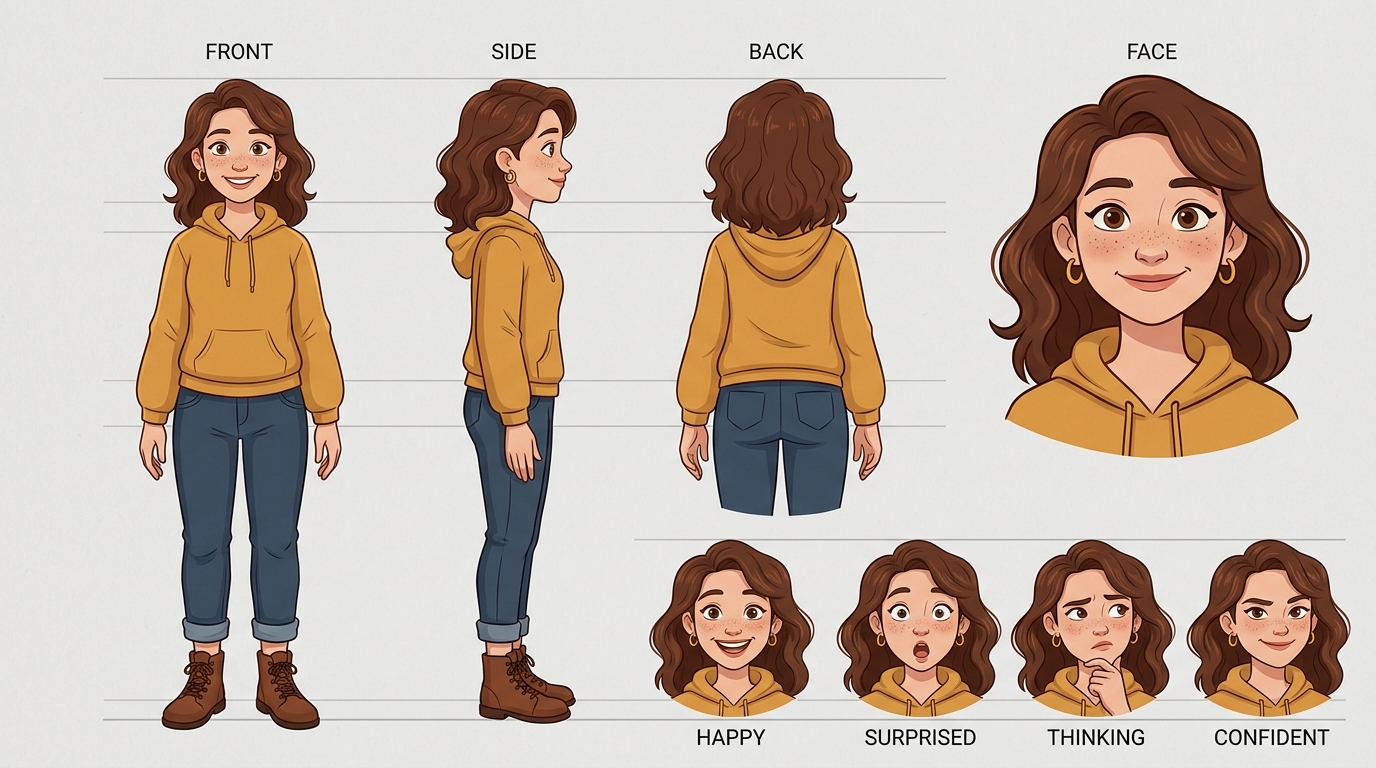
- The sprite card is one reference sheet — front/side/back + a face close-up on a neutral background.
- Every generation featuring the character passes the same sprite card as the reference input.
- Look before you generate — list the character folder first; never re-imagine a saved character from memory.
Why characters drift — and how to stop it
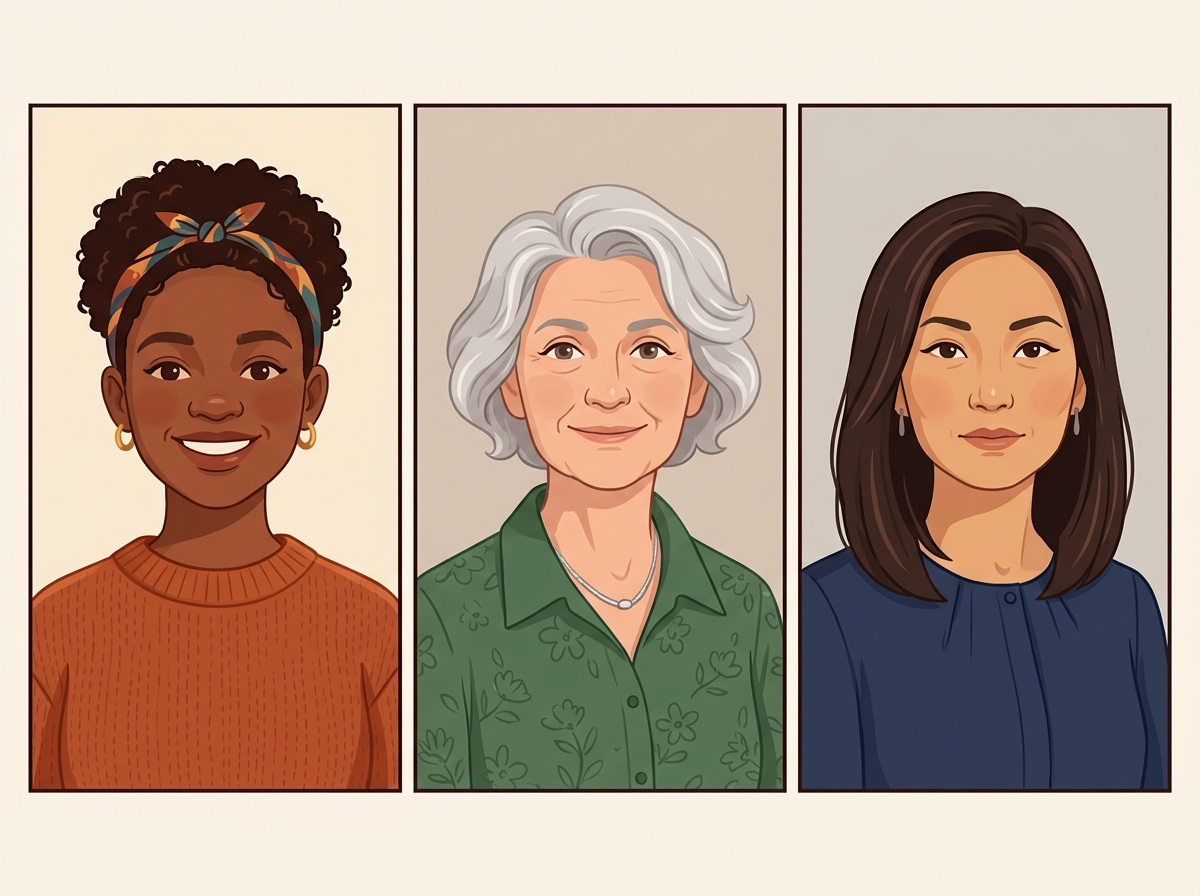
If you ask a model for "the same girl" three times, you get three different people. The fix is to stop relying on the model's memory and start relying on a reference image. You build the character once, save it, and then attach that exact image to every generation. The model conditions on it, and the face, hair, and wardrobe carry through.
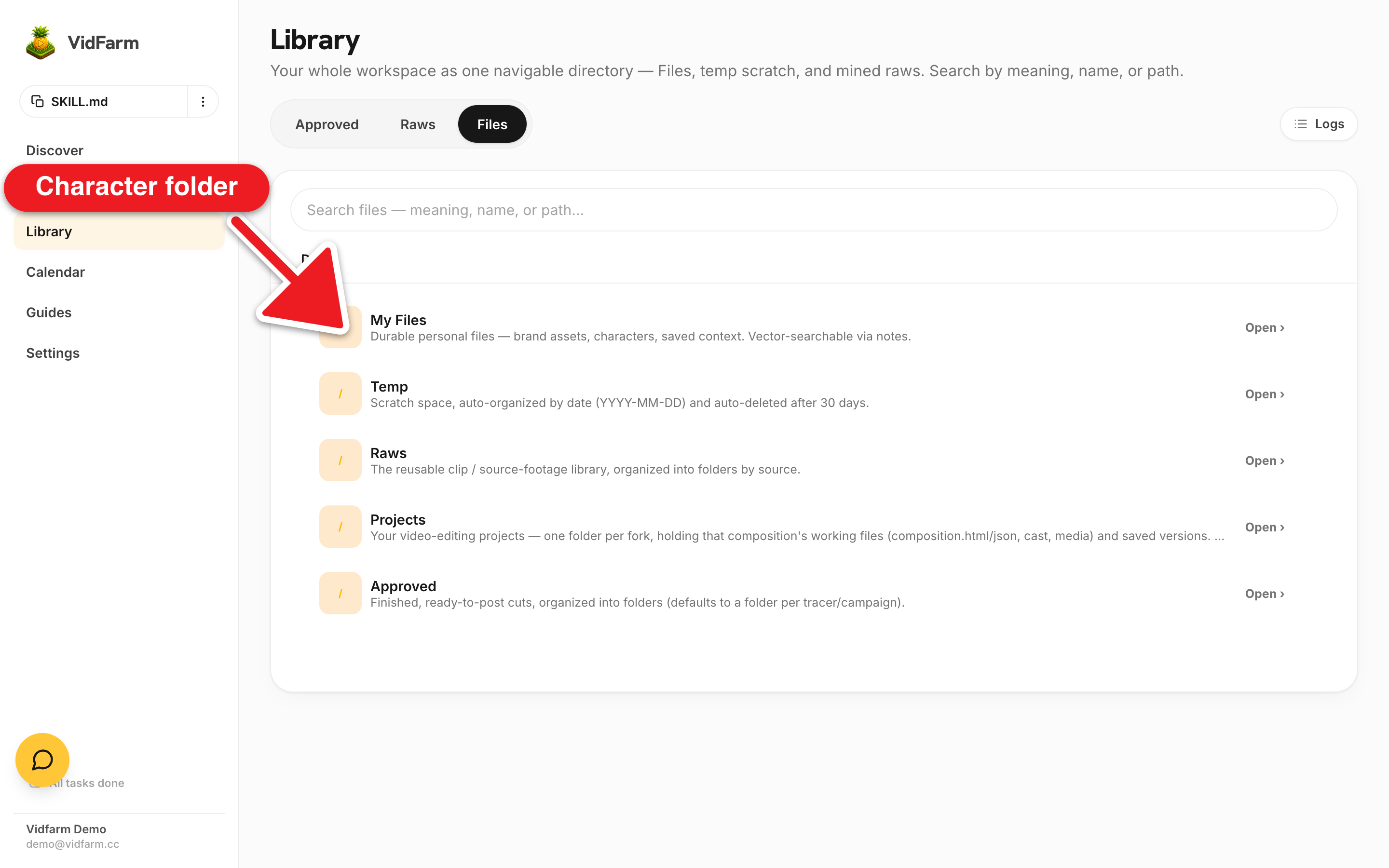
VidFarm gives every recurring character a permanent home in My Files at /files/characters/<slug>/. It holds three files that work together:
- character_<slug>.json — the manifest: id, slug, name, role, appearance, wardrobe, a palette, voice, do's and don'ts, plus
sprite_card_pathandabout_path. Never double the prefix — it'scharacter_zara.json, notcharacter_character_zara.json. - character_sprite_card.png — one reference sheet: full body front / side / back plus a face close-up, on a neutral background.
- character_about.md — the prose the manifest summarizes.
The reference sheetBuild the sprite card
The character_sprite_card.png is the single most important asset. It's the reference you'll attach forever after, so it needs every angle the model might have to reconstruct: front, side, back, and a tight face close-up, all on a clean neutral background.
-
Name it and derive a slug
Agree a name and turn it into a URL-safe slug (lowercase, hyphens). "Zara the fox mascot" becomes
zara, and the folder becomes/files/characters/zara/. -
Gather the spec conversationally
In Chat or the editor copilot, describe the character: appearance, wardrobe, signature colors, personality, voice, do's and don'ts. If you already have reference photos, hand them over — the copilot pulls detail straight from them.
-
Mint the sprite card (image generation is cheap)
Chat: "Generate a character reference sheet for Zara — full body front, side, and back plus a face close-up, on a neutral gray background. Teal bomber jacket, cream chest fluff." The copilot calls
POST /api/v1/primitives/images/generatewith your real photos asprompt_attachments. Because it's image generation, you can stack several reference photos and iterate cheaply until it's right. -
Save the trio and annotate it
Save the finished PNG as
character_sprite_card.pngunder/files/characters/zara/, then writecharacter_zara.jsonandcharacter_about.mdbeside it. Add notes to all three naming the character — the notes are embedded on save, so a semantic search like "our fox mascot" recovers the card from any phrasing later.
Use the same reference on every generation
Once the card exists, the rule is simple and unchanging: every generation featuring the character passes the sprite card's viewUrl as the reference, and you lift wording from the manifest into the prompt.
Where the reference goes depends on what you're generating:
- Images — the card goes in
prompt_attachments. Multiple references stack fine here, so you can add the card plus a pose reference. - Image edits — the frame to revise is
source_image_url; extra references go inreference_attachments. - Video — the card goes in
input_referenceson/videos/generate, or as aframe_imagesfirst-frame entry. - In the editor —
generate_layerroutes images toprompt_attachmentsand video toinput_referencesautomatically, and auto-places the result.
 A different person every shotThe same character, on model
browse_files the character folder first and read the manifest — never re-imagine a saved character from memory, because that's exactly how characters drift off-model. If you rename or move the folder, update id, sprite_card_path, and about_path inside the manifest and rename the .json to match.Where to go next
A consistent character is the prerequisite for every multi-shot story. Use it to animate a still, replace an actor, or run a whole drama series with a recurring cast.
Lock your character now
Open My Files, mint a sprite card, and save the trio. From then on, every shot that features your character stays on-model — because you feed it the same reference every time.
Open My Files