Recaption a proven template in one chat
The gentlest edit there is: keep the winning video exactly as it is, and swap only the on-screen captions to your message. Then ship it — approve, connect a channel, and schedule.
Key takeaways
- Recaptioning keeps the footage and audio and rewrites only the text — the cheapest edit in VidFarm.
- You do it by chatting:
set_captionsrewrites & restyles every caption;set_layer_textfixes one cue. - The editor auto-forks on your first edit and the copilot confirms before it renders — no surprise charges.
- This is the first demo that ships a post: approve → connect a channel at
/settings/channels→ schedule.
The idea: change the words, nothing else
A recaption is a pure text swap. The clip that already went viral stays untouched — same footage, same audio, same caption timing and animation — and you simply put your words on screen. It's the fastest way to turn someone else's proven format into your message, and it costs almost nothing because no footage or audio is regenerated.
Under the hood the copilot has two caption verbs. set_captions is the "restyle everything" tool — it rewrites and re-animates every caption cue in one shot. set_layer_text surgically rewrites a single cue. You'll rarely touch anything else in this demo.
Manual walkthroughDo it yourself (the web UI)
-
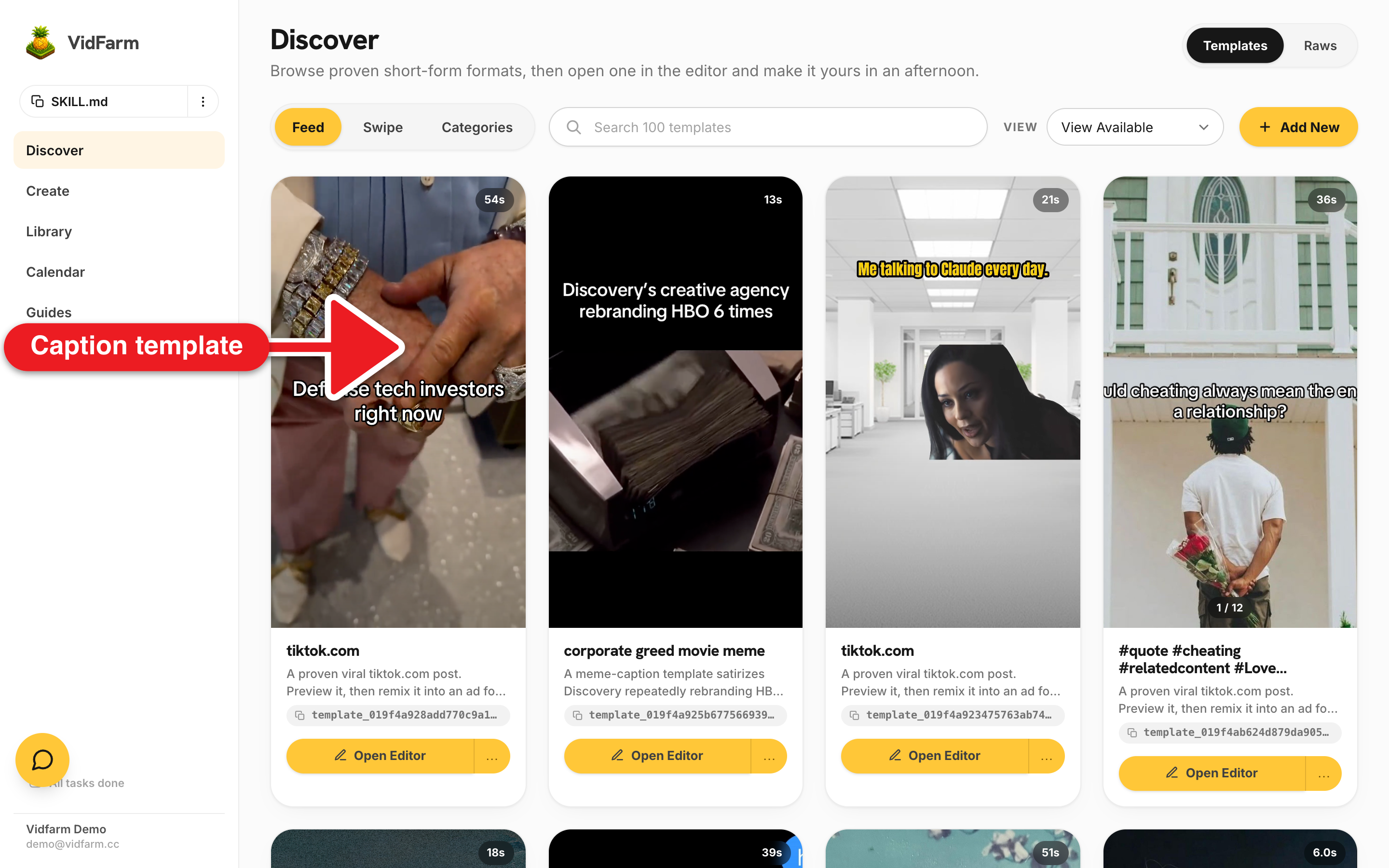
Pick a caption-driven template
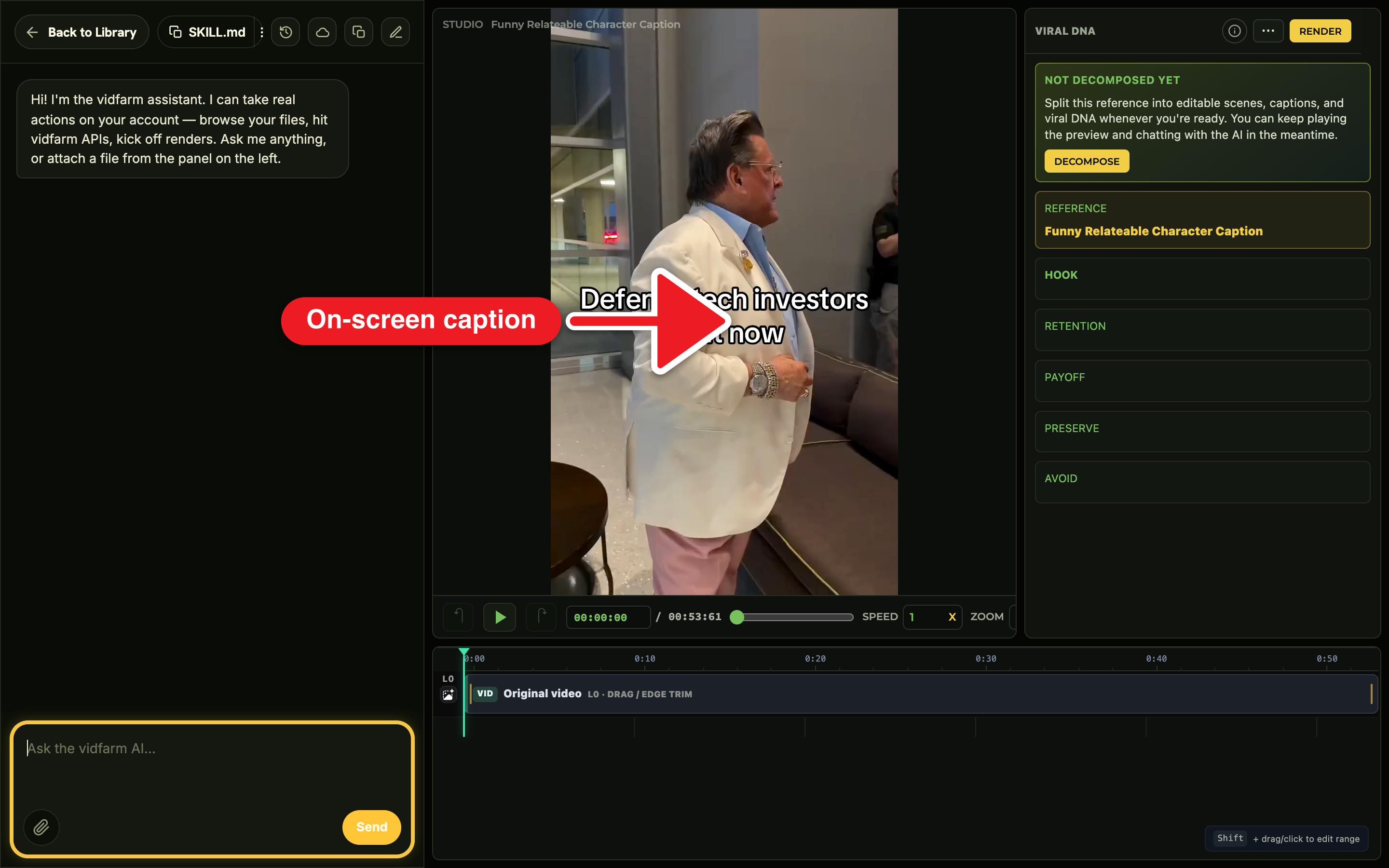
On the Discover feed , find a format that lives on its captions — a talking-head or a meme-caption-swap short. Open the card and click into it. You land in the Trackpad Editor ; VidFarm auto-forks the template into your own private copy the moment you make your first edit, so there's no "create fork" button to hunt for.
-
Rewrite every caption to your subject
Open the chat dock on the right and describe the swap in one message. Keep the timing and animation; only change the words:
"Rewrite every caption to be about my product, Acme — a tool that turns messy notes into clean docs. Keep the exact caption timing, animation style, and scene structure; just change the words."
The copilot fires
set_captionsand you watch the new lines appear on the live preview. -
Optional — restyle the captions
Want a different look? Ask for it plainly:
"Make the captions the spotlight style, uppercase, with a yellow active word."
That's still
set_captions— presets includespotlight,karaoke,word-pop,stack-up,neon, andbounce, plus uppercase and active-word colour toggles. -
Optional — fix one line
If a single cue is off, don't re-run everything — name it:
"Change scene 2's caption to 'Ship it Friday.'"
That's
set_layer_texton just that cue, leaving the rest alone. -
Review, then render
Scrub the preview. When it looks right, say "Looks good, render it." The copilot never renders on its own — it always asks first — so nothing costs money until you give the word. It fires
export_composition(the same thing as the Render button) and the MP4 builds in the background. -
Approve into a shareable post
When the render lands, approve it into a post you can share:
"Approve this with caption 'Messy notes in, clean docs out.' and pinned comment 'Try Acme free →'."
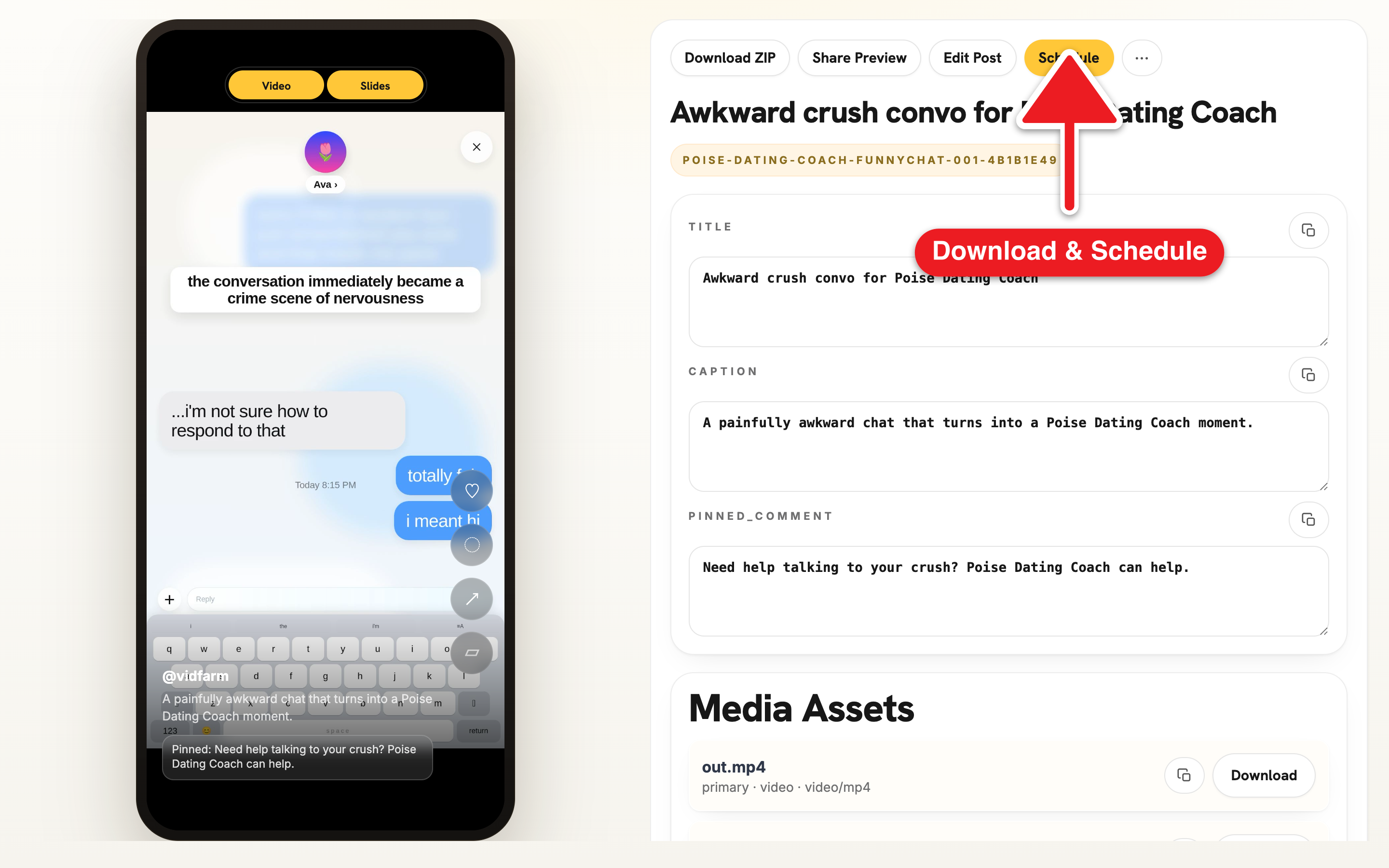
You get a share page — a TikTok-style phone mockup with copyable caption/title/pinned-comment fields and a download button.
set_captions replaces every caption layer — it's the bulk restyle verb. To change just one line, use set_layer_text instead so you don't blow away the rest. Also note: true word-level karaoke timing only lands on an OpenAI (whisper) key; other providers estimate the windows.The posting tailShip it: approve, connect, schedule
This is the first demo that produces a post you'll actually publish, so here's the whole posting tail once — every later demo ends the same way.
-
Find it in your library
Every approved cut lands in Library → Approved as a card with a 9:16 poster, a ready status pill, and an action bar: Share Post, Edit, and a ⋯ menu. This is your home base for published videos.
-
Connect a posting channel (once)
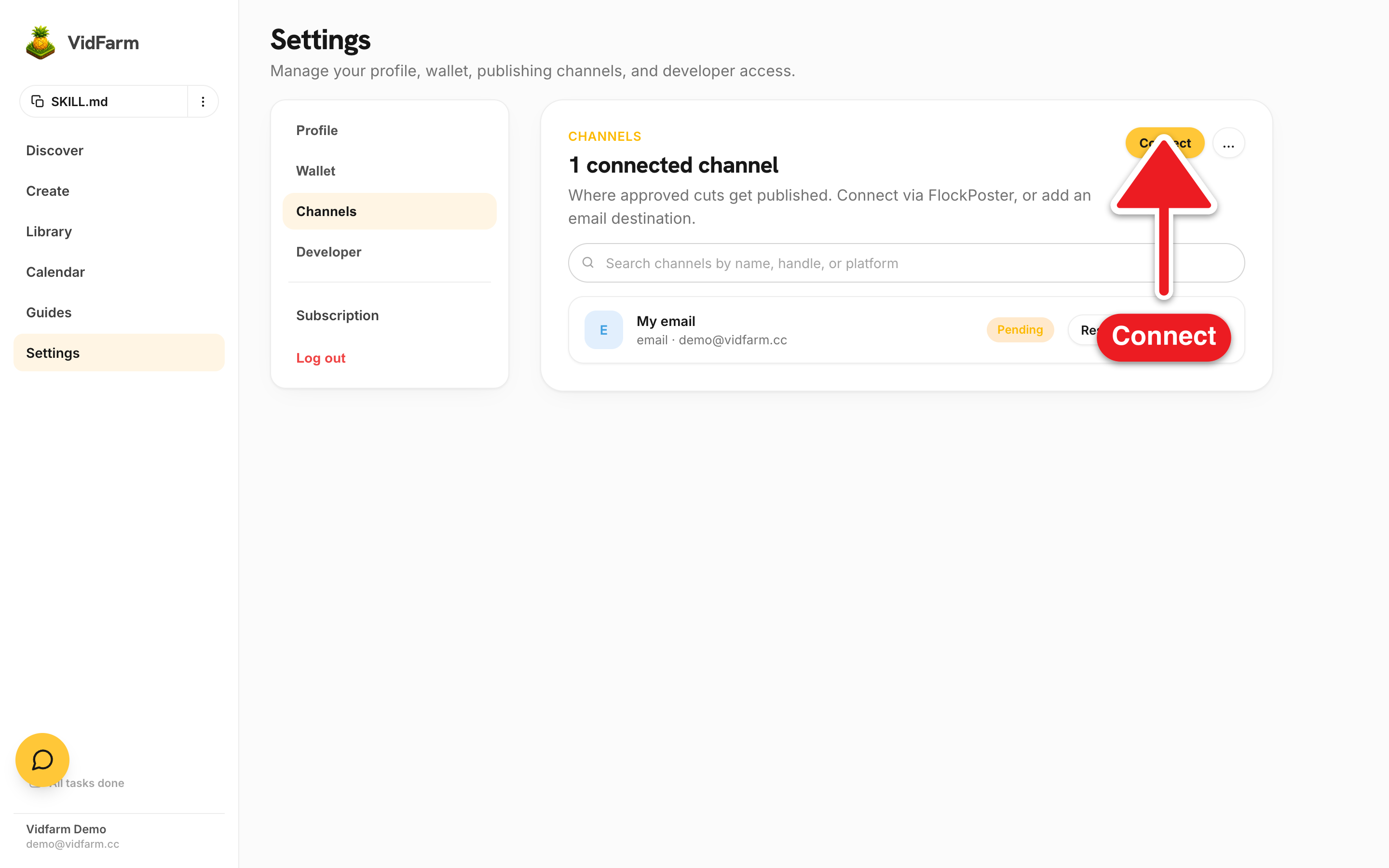
To schedule anywhere, connect a destination in Settings → Channels . Two kinds:
FlockPoster — click the gold Connect button, paste your FlockPoster API key (
fp_live_…), and hit Connect & test. Once linked, your TikTok / Instagram / YouTube channels appear as tiles. Or add an Email channel from the ⋯ menu — VidFarm sends a consent confirmation before that address can receive scheduled deliveries. -
Schedule from the approved page
Open the post's share page (or hit Share Post in the library) and click Schedule. Pick a date & time, a timezone, and a channel, add any notes, and submit. Minimum 10-minute lead time.
Scheduled posts then show up as chips on the month board at Socials — that page visualises your schedule; the actual scheduling happens on the approved post.
Where to go next
You've shipped your first post. Next, learn what a render actually costs, then move up to swapping real footage:
Recaption one now
Open the Discover feed, fork a caption-driven template, and put your words on a proven format in one chat. Cloud renders start at $0.01.
Open the Discover feed