Remix a template with clips you hunt
Point the AI at a long podcast or YouTube video, let it hunt the best short clips, then drop those raws into a remix template and cut them to the beat — all by chatting.
Key takeaways
- An AI hunt (
/clips/scan) mines a long source for the best short, on-topic clips — async, in the cloud. - The hunted raws land in your Library → Raws; you drop them into a template with
set_layer_media. - Need a surgical single cut instead of a hunt?
/raws/clip-rangegrabs one exact in/out span. - The editor auto-forks and the copilot confirms before rendering — same safe loop as every demo.
The idea: mine long video for short gold
A remix is a scene replace: you keep the template's rhythm, transitions, and caption cadence, but you fuel it with fresh footage cut from a long source — a podcast, a VOD, a YouTube upload. Rather than scrub an hour of video by hand, you tell the AI what you're looking for and it hunts the clips for you.

Two routes do the sourcing. /clips/scan is the AI hunt — it watches a long-form source and returns several short clips that match your brief (async; it bills only AWS compute, and the AI tagging runs on your own keys). /raws/clip-range is the surgical cut — one exact in/out span, no AI. This demo leans on the hunt. For the full sourcing playbook — the public raws feed, importing by URL or upload, and the clipper — see Sourcing & clipping raws with AI .
Manual walkthroughDo it yourself (the web UI)
-
Fork a remix-style template
On the Discover feed , open a fast-cut remix format and click into the Trackpad Editor . It auto-forks on your first edit.
-
Ask the AI to hunt clips from a source
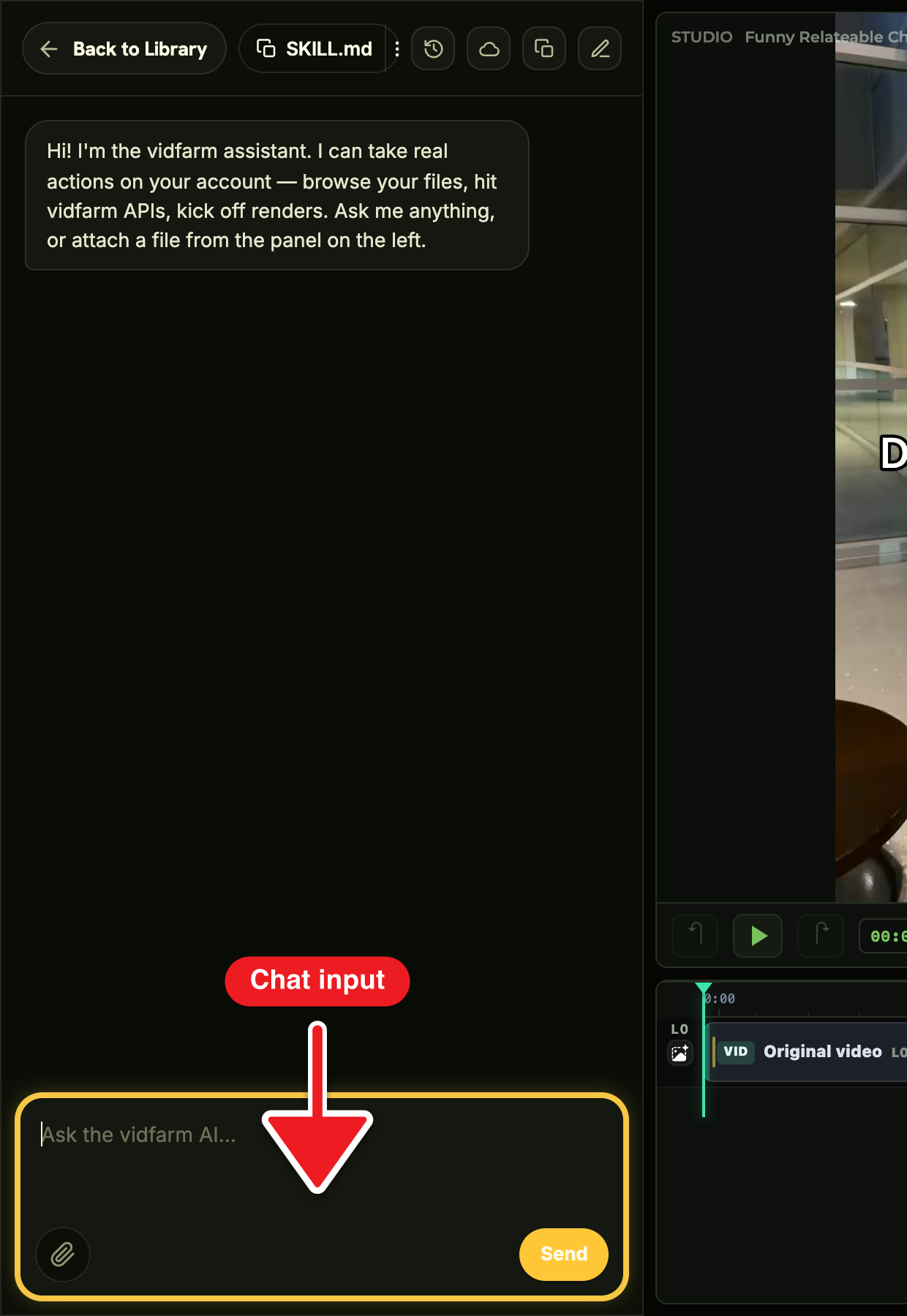
Paste a long-form URL and describe what you want cut out of it:
"Hunt 9:16 clips about cold plunges from this video: <YouTube/podcast URL>. I want about 5 clips around 3 seconds each, prefer scenes without on-screen text."
The copilot POSTs
/clips/scanwith your source, prompt, aspect, a soft target duration, and "avoid text." It returns immediately with a scan id and runs in the background. -
Watch the hunt run
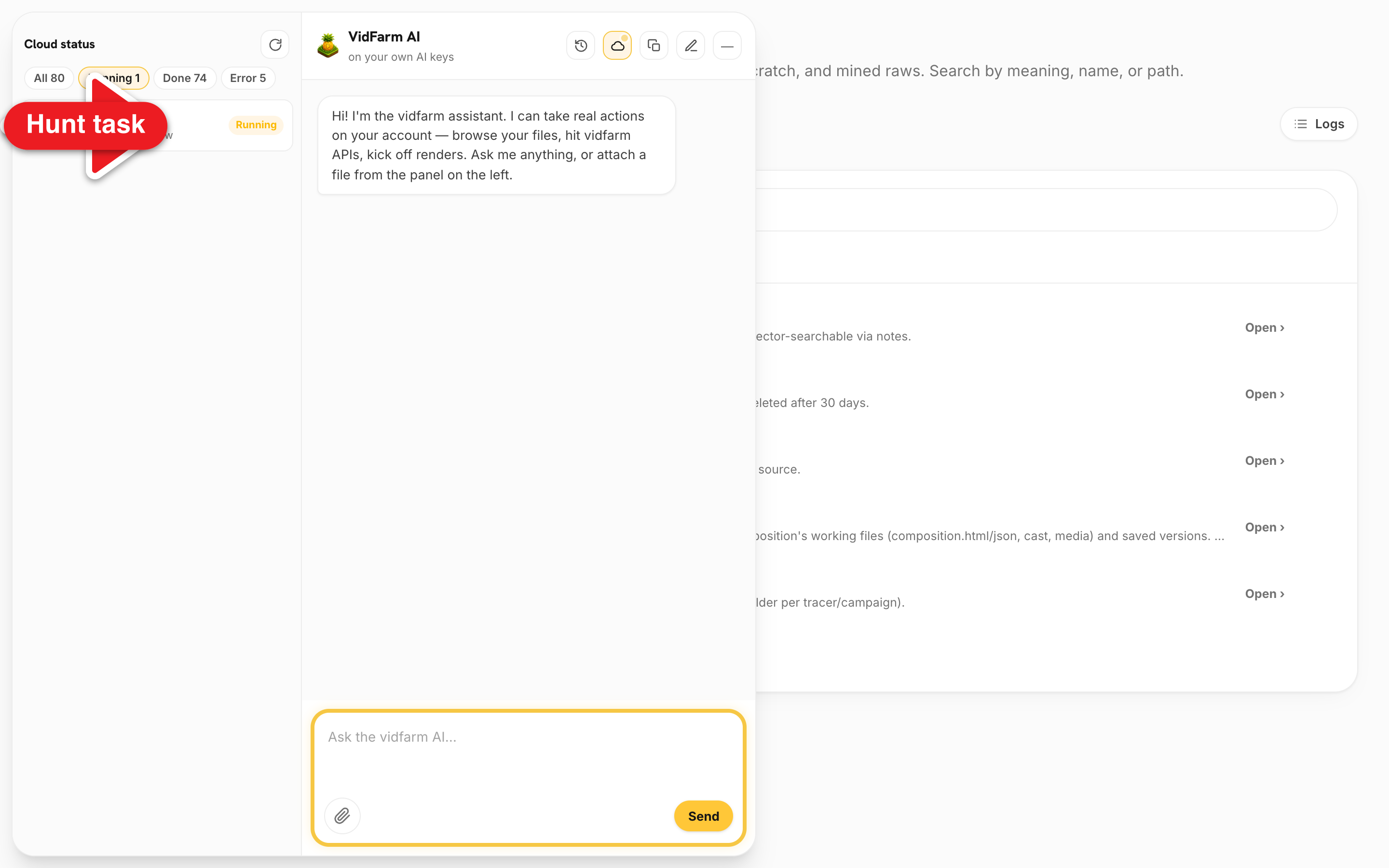
Hunts are async — don't wait on the chat. Open the cloud-status panel (
#pop-panel/cloud-status) to watch the scan progress. When it finishes, the clips show up as raws. -
Review the hunted raws
Browse your new clips in Library → Raws (they also surface in the public raws feed view). Pick the ones you like.
-
Swap the raws into the template's scenes
Tell the copilot to slot them in, keeping the template's timing:
"Swap scenes 1–4 for the hunted clips, keeping each scene's timing and the transitions."
That's
set_layer_mediaper scene using each raw'sview_url— oradd_layer/generate_layer intent:addfor a net-new scene. -
Recaption, review, render, approve
Recaption to your angle, scrub the preview, and say "Looks good, render it." The copilot confirms first, renders the MP4, and you approve it into a shareable post .
/clips/scan is for long-form sources (podcast, VOD, YouTube, TikTok, IG, X), and target_duration_sec is a soft range — asking for 3s yields roughly 2–4s clips. Because hunts are async, kick them off and keep working; the cloud-status panel tells you when they're done. Importing a file you already have should use import_only — the scan path is specifically for AI mining.Where to go next
You've mined long video into a fast remix. Go deeper on sourcing, or step up to replacing the on-screen actor with a generated one:
Hunt your first clips now
Fork a remix template, hand the AI a long podcast or YouTube URL, and let it mine the best short clips for you. Cloud renders start at $0.01.
Open the Discover feed