Free vs paid & bring-your-own-key perks
The free tier is $0 and runs on your own computer. The paid plan is a flat $30 for unlimited cloud with your own AI keys. Here's exactly what each includes, and how the five provider tiers change what you can make.
Key takeaways
- Free tier = $0, local-first: run the whole agent on your computer and render locally for free.
- Bulk Cloud = a flat $30 for unlimited cloud usage — bring your own AI keys and burst to the cloud.
- BYOK keys are never billed by VidFarm — you're only ever charged for compute.
- Five provider tiers: OpenAI / Gemini / OpenRouter are full keys; Nvidia is clipping-only and ElevenLabs is audio-only — neither counts as a qualified AI key.
Two plans, one philosophy
VidFarm is built to scale to zero: run it free on your own machine, and only pay when you want the cloud to do the heavy lifting. That gives you two starting points.
- Free Tier — $0 — "Enjoy VidFarm FREE on your own computer." The whole agent runs locally and renders locally for free (via
vidfarm serve, local ffmpeg, and keyless local engines — Kokoro-82M for TTS and whisper.cpp for transcription). No wallet, no account required to render on your own machine. - Bulk Cloud — $30 — "Unlimited VidFarm usage with BYOK." A flat monthly $30 unlocks unlimited cloud usage; you plug in your own AI keys and burst any job to the cloud.
What unlocks on a paid plan
The free tier is genuinely useful — you can view and edit your Settings , add AI keys, and browse. What a paid plan adds is the cloud side of the house:
- A fundable wallet. Free users see a $0 wallet they can't top up — the button reads "Upgrade to add credits →" instead of opening checkout. Paid users fund a real credit wallet and see full billing history.
- My Files upload. The upload/explorer card in Settings → Profile only renders for paid accounts.
- The full app surface. Free caps the discover feed at 100 items (with a swipe paywall) and makes
/library/rawsread-only;/chat,/tools/*,/calendar, and the Library (approved / files / logs) are paid-gated behind an upgrade modal. - The pre-decomposed viral library and the scale-learned prompt harness. On free, you decompose a reference video by hand; paid accounts get templates that are already decomposed, so forks skip that step.
Bring your own AI keysBYOK — the five provider tiers
Bringing your own AI keys (BYOK) is how you turn on the smart features on any tier — and because those keys are never billed by VidFarm, it's how you keep costs near zero. But not every provider is equal, and two of them trip people up.
From the Settings → Developer card: keys are "Stored per workspace. OpenAI, Gemini, or OpenRouter power clip tagging, recaption, image/video generation, and Swipe — BYOK, never billed by vidfarm." Here are all five:
- OpenAI — a full, qualified AI key. Powers the core features: clip tagging, recaption, image/video generation, Swipe, and chat.
- Gemini — full, qualified. Same core-feature coverage.
- OpenRouter — full, qualified. Its partnered free tier keeps costs near zero.
- Nvidia (clipping only) — a lite key (minimax-m3). Great for AI clip hunting and usable for chat and tool calls, but it cannot generate images or video and it's "less smart," so pair it with a full key for the core features. Its partnered free tier is near-zero cost.
- ElevenLabs (audio only) — powers music, voiceover, and transcription. It does not count as a qualified AI key. With no ElevenLabs key, music and speech simply run on VidFarm's key and bill your wallet (
use_wallet_credits).
Add an AI keyTurn on BYOK
Adding a key works the same on free or paid and takes about thirty seconds:
-
Open the Developer tab
Go to Settings → Developer and scroll to the "Bring your own AI Keys" card.
-
Click "Add AI Key"
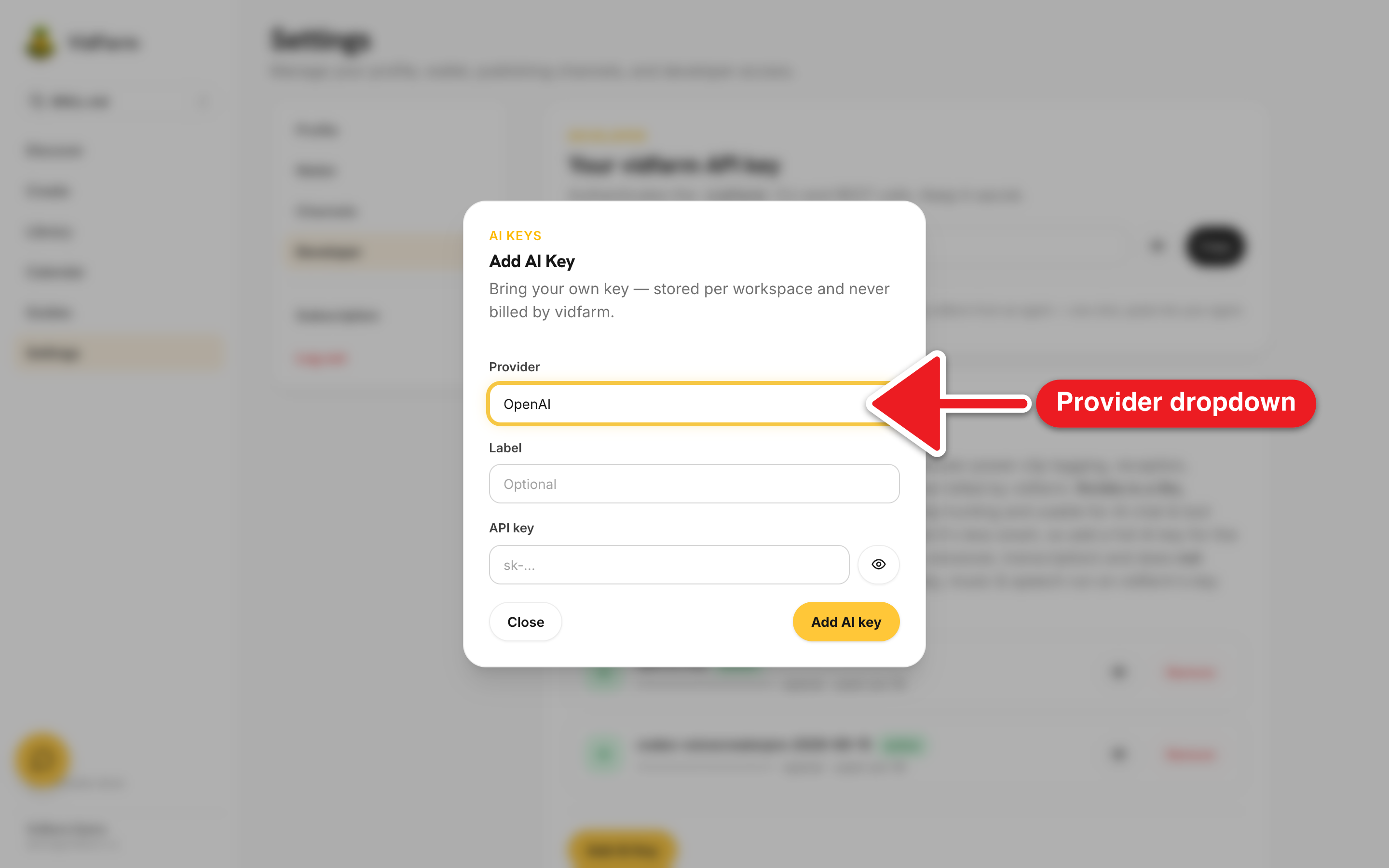
The gold "Add AI Key" button opens a dialog titled "Add AI Key" — "Bring your own key — stored per workspace and never billed by vidfarm."
-
Pick a provider and paste the key
Choose a Provider from the dropdown — OpenAI, Gemini, OpenRouter, Nvidia (clipping only), or ElevenLabs (audio only) — add an optional Label, paste the API key, and click "Add AI key". It appears in the list with an "active" pill; remove any with "Remove".
New to a provider? These short walkthroughs show exactly where to create an API key for each of the three full, qualified providers — expand the one you're using:
OpenAI ChatGPT (Recommended)
Create an OpenAI API key and paste it into the Add AI Key dialog.
Google Gemini
Create a Google Gemini API key and paste it into the Add AI Key dialog.
OpenRouter
Create an OpenRouter API key and paste it into the Add AI Key dialog.
Where to go next
That's the plan and provider landscape. Next, get your account and keys set up properly, or dig into how the money actually works:
Start free, upgrade when you burst
Run VidFarm free on your own machine, add your own AI keys, and only pay the flat $30 when you want unlimited cloud. Either way, your AI keys are never billed by VidFarm.
Open Settings → Developer