Desktop AI Agents — the best way to use VidFarm
Run a coding agent on your own machine — Claude Code, OpenAI Codex, Gemini CLI, Opencode, or Kimi Code — driving the vidfarm CLI with a real shell, a real filesystem, and free local rendering. All the thinking runs on a flat-rate plan you already have, and several of these agents are free.
Key takeaways
- A desktop AI agent is a coding agent running in your terminal that drives the
vidfarmdevcli end-to-end. - It has powers the browser can't give: a real shell, a real filesystem, the full edit verb set, JS animation adapters, and free local rendering.
- The economics are the point: the agent's thinking runs on a flat-rate plan you already have — including free options like Gemini CLI or Opencode — so your VidFarm wallet is only touched when a job genuinely needs the cloud.
- Pick whichever agent matches what you already use — Claude Code, OpenAI Codex, Gemini CLI, Opencode, or Kimi Code — several have free tiers. Install one skill, set one key, and go.
What a desktop agent is
A desktop AI agent is an AI coding agent that runs on your computer, in your terminal, with full access to your machine. Instead of typing edits into a web box, you tell the agent what video you want and it drives the vidfarm command-line director for you — sourcing clips, editing the timeline, generating shots, rendering, and publishing.
This is the preferred way to use VidFarm. The agent plans the work, runs the commands, reads the results, fixes its own mistakes, and loops until the video is right — the same way a developer's coding agent builds software, except the output is a finished short.
Real shell, real files, free rendersWhy desktop agents are better
A desktop agent isn't a nicer chat box — it's a fundamentally more capable surface.
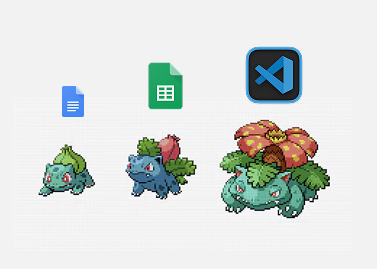
Think about the leap from a document to a spreadsheet. A doc holds words; a spreadsheet holds a living machine — formulas, references, whole models that recompute themselves. That single jump unlocked entire professions. Moving from a web editor to a desktop AI agent is a leap of exactly the same size, and it's the most powerful way to make video that exists today. The browser box types edits one at a time; the desktop agent is the spreadsheet moment — a real shell, real files, free local renders, and a loop that plans, builds, checks, and fixes itself.
And here's the honest part: don't be intimidated — it's easy. You install one skill, set one key, and type what you want in plain English. The agent handles the commands. The first time you watch it source clips, edit the timeline, render on your own machine, critique its own work, and hand you a finished short, something clicks — and you never want to go back to clicking around a web editor. Like the spreadsheet, once you've learned it, the old way just feels slow.
- A real shell & filesystem — it pulls your fork to disk, keeps assets in real folders, runs scripts, and batches work across many videos in one go.
- The full edit verb set + JS animation — every timeline action plus JavaScript animation adapters (GSAP, anime.js, Lottie, Three.js), not just the declarative subset.
- Free local rendering — the agent renders on your own machine at no per-render cost, so it can render → critique → fix → re-render in a tight loop.
- Unbounded, unattended runs — big rebuilds and multi-scene jobs that would blow past a single web turn's context and timeout limits just... run.
Flat-rate plan, not per-tokenThe economics: your subscription does the thinking
Here's the part that saves you real money. Desktop agents run on a flat-rate plan you probably already have — and some are free. Gemini CLI has a generous free tier, and Opencode is open-source and can point at a free or local model. If you prefer a paid plan, the popular ones (Claude Code, OpenAI Codex, Kimi Code) are typically just a flat monthly rate.
All the planning, editing loops, and back-and-forth the agent does are covered by that plan — free or flat-rate. You never pay per token to think through a video. Your VidFarm wallet is only touched when a job genuinely needs the cloud — an AI generation you asked for, or a cloud render — and even those start at $0.01. The conversation itself costs you nothing extra.
Pick one — several are freeThe recommended desktop agents
Any of these terminal agents can drive VidFarm. Choose whichever matches what you already use — some are free, some are a flat monthly plan — the workflow is identical once the skill is installed. Each link below goes straight to that agent's install instructions.
- Claude Code (Anthropic) — install guide . Runs on your Claude Pro/Max plan. The most battle-tested agent for this workflow.
- OpenAI Codex — install guide . Runs on your ChatGPT Plus/Pro plan.
- Google Gemini CLI — install guide . Free — Google's open-source terminal agent with a generous free tier on your Google account.
- Opencode — install guide . Free & open-source — model-agnostic, so you can point it at a free or local model and it still drives VidFarm.
- Kimi Code (Moonshot AI) — install guide . Runs on a low-cost Kimi plan; a strong option, especially outside the US.
Agent → skill → keySet it up in three steps
Once your terminal agent is installed, connecting it to VidFarm takes about a minute. Do this once and every workflow runs from your terminal.
-
Install your desktop agent
Install whichever agent above matches your subscription and sign it in. This is the only piece that lives outside VidFarm — follow its own install docs (linked above), then come back to your terminal.
-
Install the vidfarm skill
The skill teaches your agent every VidFarm workflow — discovery, forking, timeline edits, decompose, render, publish, and scheduling. Install it once:
Install the skillnpx skills add https://github.com/officexapp/vidfarm -
Set your VIDFARM_API_KEY
Grab your key from Settings → Developer and export it so the agent can authenticate. Then confirm it's wired up:
Authenticateexport VIDFARM_API_KEY=<your key from Settings → Developer> vidfarm whoami
vidfarm
Copy the full REST + CLI playbook into your agent, or grab the one-line install command from the ⋮ menu.
One prompt, start to finishHand your first video to the agent
With the skill installed and your key set, describe the video you want and let the agent do the whole job — source, edit, render locally, critique, and publish. Paste this into your desktop agent:
Where to go next
That's the whole idea: a desktop agent on a plan you already have — free or flat-rate — driving VidFarm from your terminal with a real shell, real files, and free local renders. From here, set up your account and hand the agent its first job.
Point your agent at VidFarm
Install the vidfarm skill, set your key, and give your desktop agent one video to make. Renders start at $0.01 in the cloud — and free on your own machine.
Register & set up VidFarm